
- Windows
- Outlook
- Steps
- Video
- IMAP
- Steps
- Mac
- Outlook
- Steps
- Video
- Mac Mail
- Steps
- Video
- Mobile
- Android
- Outlook for Android Steps
- Video
- iOS Mail
- Steps
- Video
The following are the various articles for adding your Microsoft 365 account to your device.
Windows
Outlook
Steps
- Open the Start menu. Search for Outlook, and choose it.
- Enter your Microsoft 365 email address, and select Connect.
- Enter any additional email addresses that you want to use, such as your previous or personal email address. Select Next.
- If prompted, enter a password, and then select Sign in.
- After all of your accounts have been added, choose if you want to set up Outlook mobile or wait until later.
- Select Done. It may take several minutes for Outlook to download your email and other data.
Video
IMAP
Steps
- Please send an email to [email protected] for instructions
Mac
Outlook
Steps
- Select Outlook > Preferences > Account.
- Click the plus (+) sign > New Account.
- Type your email address > Continue.
- Type your password > Add Account. (Your screen might look different from this one depending on the account you’re adding.)
- Select Done to start using Outlook 2016 for Mac.
Video
Mac Mail
Steps
- Open Mail, and then do one of the following:
- If you’ve never used Mail to set up an email account, the Welcome to Mail page opens. Go to step 2.
- If you’ve used Mail to create email accounts, select Mail > Add Account.
- Select Exchange > Continue.
- Enter the name, email address and password for your Exchange account > Sign In.
- Choose the Mac apps you want to use with this account. Available choices are Mail, Contacts, Calendar, Reminders, and Notes.
- Click Done.
Video
Mobile
Android
There are multiple options for using Microsoft 365 on your Android device. It’s suggested to use the Outlook app as it will provide the fullest feature experience.
Outlook for Android Steps
- Install the Outlook for Android app from the Google Play Store and then open it.
- Tap Get Started if this is your first time.
- Outlook may detect your Google accounts. To add them to Outlook for Android, tap Google Connect Account and then tap OK to confirm. Tap Allow to give Outlook access to your Contacts.
- If you don’t want to add these accounts, tap Skip and then go to step 4 under Set up another email account below..
- Otherwise, to add another email account, open the Menu
 > Settings
  > Add Account > Add Email Account.
 - Enter your full email address, then tap Continue.
- Enter your email account password and tap Sign In or Next.
- If multi-factor authentication is enabled, verify your identity. For more information, see Security info overview.
Outlook for Android Video
iPhone
Native iPhone/iOS Mail/Calendar
Set up email with iOS Mail app
Read the full article here -> https://support.microsoft.com/en-us/office/set-up-an-outlook-account-on-the-ios-mail-app-7e5b180f-bc8f-45cc-8da1-5cefc1e633d1
1. Go to your iPhone or iPad’s Settings > scroll down and tap Accounts & Passwords > Add Account.
Note: If you’re on iOS 10, go to Mail > Accounts >Add Account.
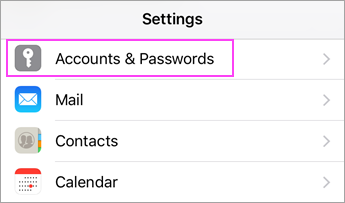
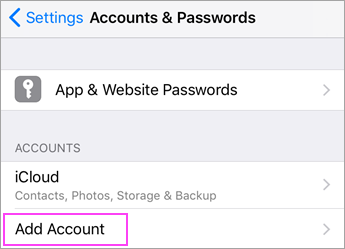
2. Select Exchange.
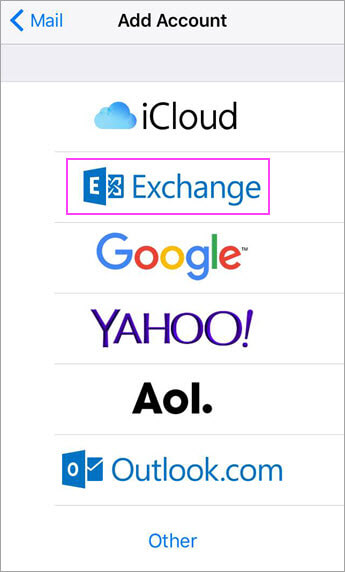
3. Enter your Microsoft 365 email address, password, and a description of your account. Tap Next.
Note: Your email address should be your Microsoft 365 business account or school account.
4. Tap Sign In.
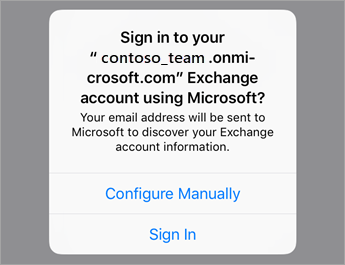
4. Enter the password associated with your email account. Tap Sign in or Next.
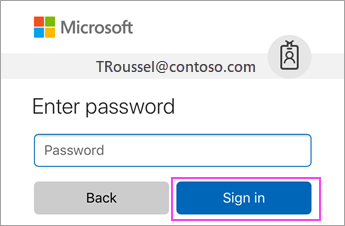
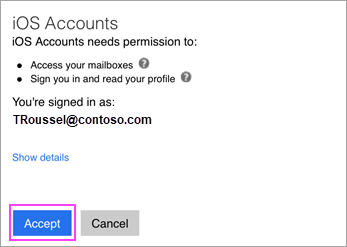
5. The Mail app may request certain permissions. Tap Accept.
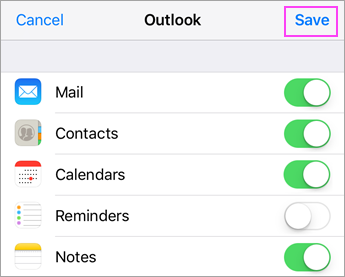
6. Choose the services you want to sync with your iOS device and tap Save. You’re done!
Outlook for iOS App
- Download Outlook for iOS from the iOS App Store and then open it. The icon looks like this:

- If it’s your first time using Outlook for iOS, enter your full email address, then tap Add Account.
- If not, open the Menu > tap Settings Outlook app settings > Add Account > Add Email Account.
- Enter your email account password and tap Sign In.
- If multi-factor authentication is enabled, verify your identity. For more information, see Security info overview.