
Creating a Google account using a non-Gmail or non-Google Workspace email address is a straightforward process. Below are the step-by-step instructions along with screenshots to guide you through the process.
Step-by-Step Instructions:
- Go to the Google Account Creation Page:
- Open your web browser and go to https://accounts.google.com/signup
- Start the Account Creation Process:
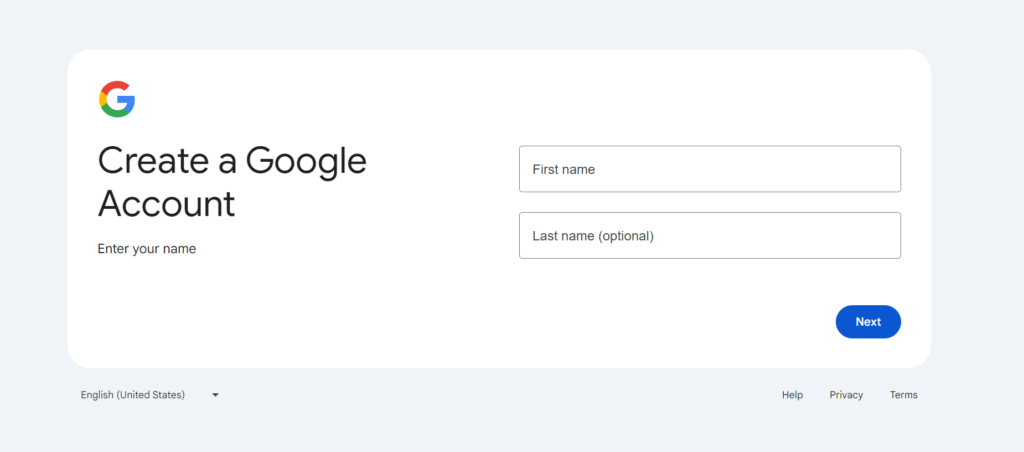
- On the sign-up page, you will see the form for creating a Google account.
- You will be asked for your First and Last Name
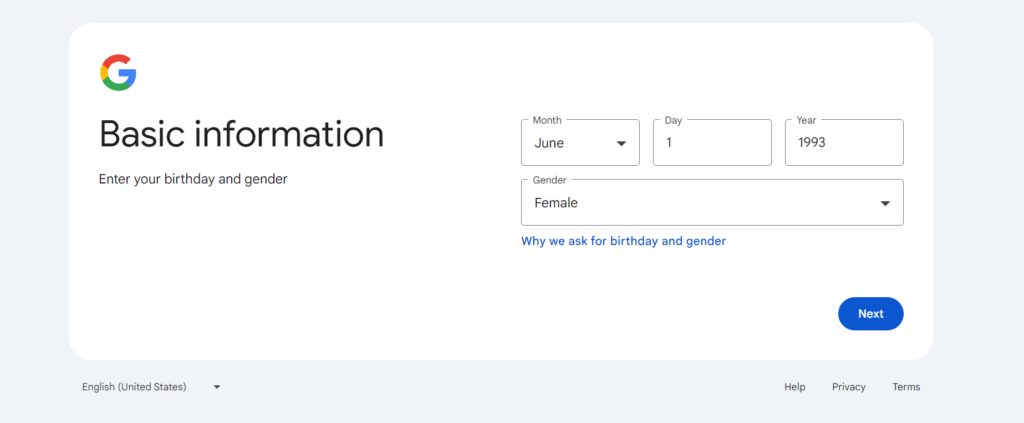
- You will then be asked your birthday and Gender.
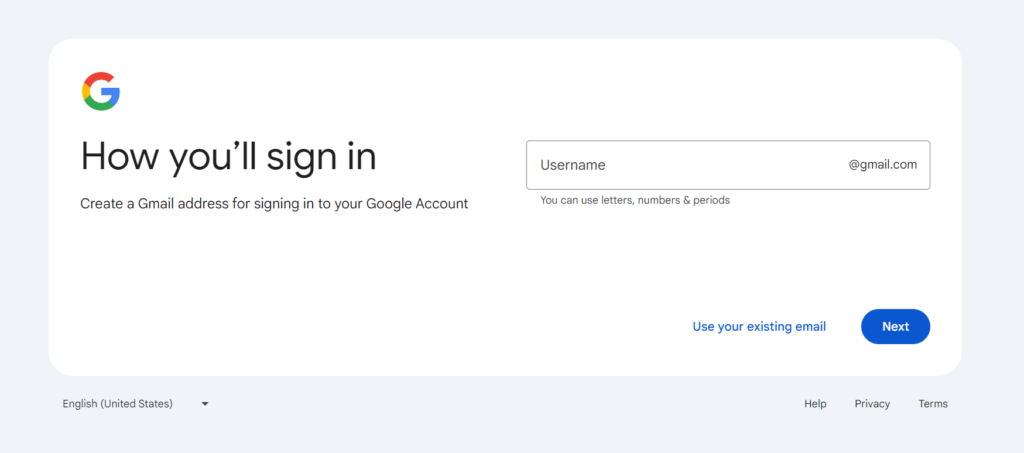
- Click “Use your existing Email”
- Click on “Use your existing Email” to use your existing email address.
- Enter your non-Google email address in the “Your email address” field.
- Fill in the rest of the information such as your first name, last name, password, and confirm the password.
- Verify Your Email Address:
- After you fill in the information, click “Next.”
- Google will send a verification code to the email address you provided.
- Check your email inbox for the verification code and enter it in the verification field.
- Complete Your Profile:
- After verifying your email, you will be prompted to complete your profile by providing information such as your phone number (optional), recovery email address (optional), date of birth, and gender.
- Agree to Google’s Terms:
- Review Google’s Terms of Service and Privacy Policy.
- Click “I agree” to complete the account creation process.
- Account Created:
- Once you agree to the terms, your Google account will be created, and you will be directed to your new Google Account dashboard.
Summary:
- Go to the Google Account Creation Page.
- Choose “Use my current email address instead.”
- Enter your non-Google email address and complete the form.
- Verify your email address with the code sent to your inbox.
- Complete your profile information.
- Agree to Google’s terms to finalize the account creation.
These steps should help you create a Google account using any non-Gmail or non-Google Workspace email address.