
- Download Google Drive
- Logged out
- Logged in
- Install Google Drive Client on Mac
- Install Google Drive Client on Windows
- Sign in and Additional Google Drive Account
Download Google Drive
Logged out
- Open your web browser and go to the Google Drive website at https://drive.google.com
- If you’re not logged into your Google Account will see the following screen.
- Click on Download

- Then click on “Download Drive for Desktop”
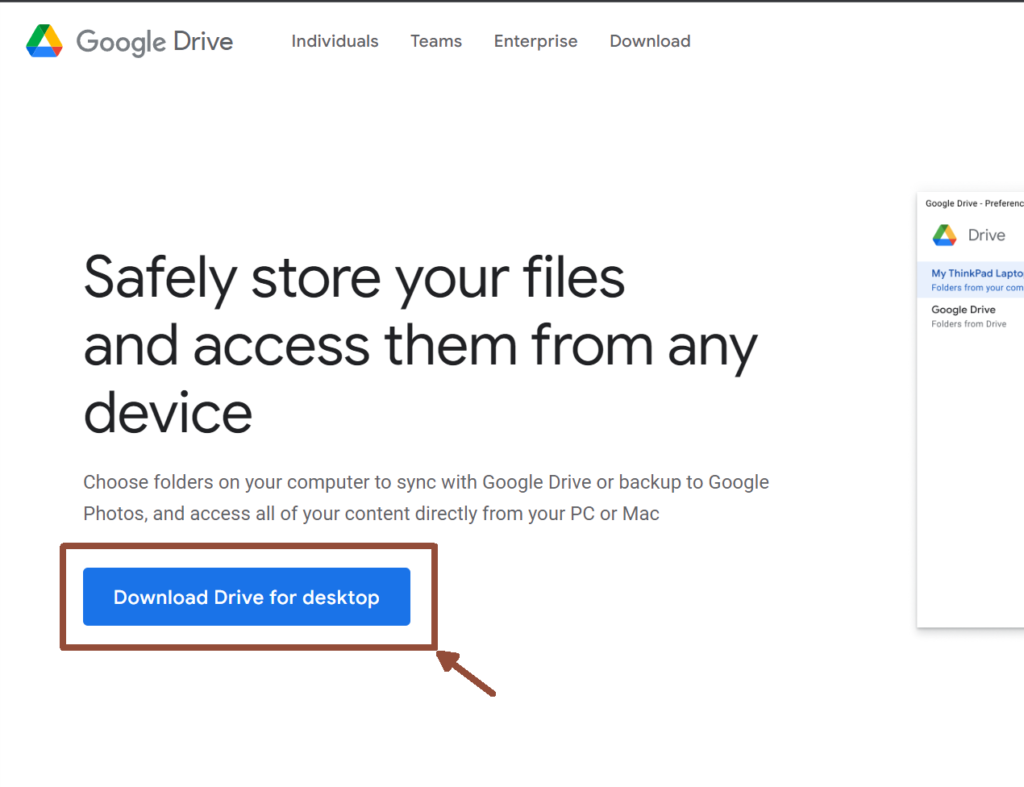
Google Drive will now download to your computer.
Logged in
If you’re logged in, you must follow the instructions below.
- Open your web browser and go to the Google Drive website at https://drive.google.com
- On the left-hand side of the screen, click on the gear icon and then “Get Drive for Desktop”
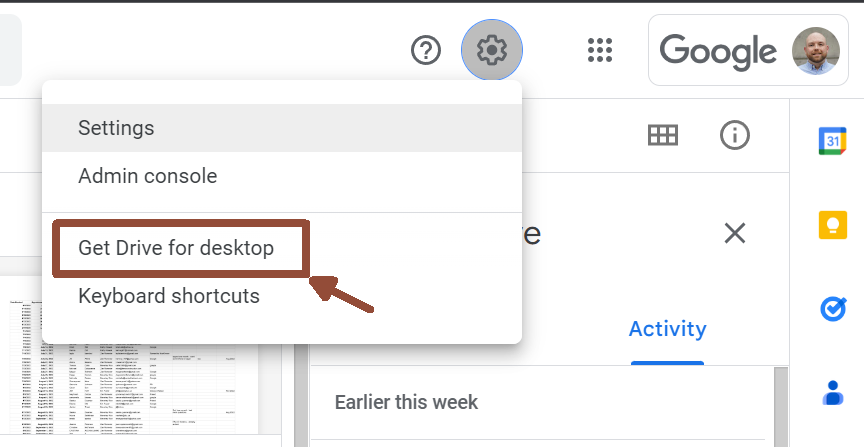
- Then click on “Download Drive for Desktop”
Install Google Drive Client on Mac
To download and install Google Drive on a Mac, follow these steps:
- Open the downloaded file and drag the Google Drive icon into the Applications folder.
- Open Google Drive from the Applications folder.
- Sign in with your Google account or create a new one.
Install Google Drive Client on Windows
To download and install Google Drive on Windows, follow these steps:
- Open the downloaded file and follow the prompts to install Google Drive.
- Once the installation is complete, open Google Drive.
- Sign in with your Google account or create a new one.
Sign in and Additional Google Drive Account
To add an additional Google account to Google Drive on a Windows or Mac desktop, follow these steps:
- Open Google Drive on your computer.
- Click on the “Google Drive” menu in the top left corner.
- Select “Preferences” or “Settings” (depending on your version of the app)
- In the “Accounts” tab or “Manage accounts” section, click on “Add account” or “+” button.
- A new window will appear, enter the email and password of the additional Google account you want to add.
- Click on “Sign in” or “Next” and follow the prompts to complete the process.
You should now have access to both accounts within Windows Explorer or macOS Finder.